Major improvement: Edit and re-open audits and assessments
1794566366397
Planned release: End November 2026
When an audit or self-assessment has been submitted, the reviewer often finds something that has to be fixed before it can be approved. Audit review gives the reviewer two ways to handle that: assign the audit back to the auditor with comments on what to fix, or edit the checkpoint directly.
It is built for two situations:
Supplier surveys. You send a survey or self-assessment to a supplier, and the supplier misunderstood a question or made a mistake. You can send it back to the supplier with comments, or correct the answer yourself.
On-site audits. A manager reviews the auditor's report and either sends it back for the auditor to fix, or makes the edits directly.
Assign the audit back to the auditor
Step 1: Comment on the checkpoints and non-conformities
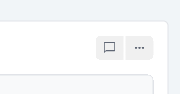
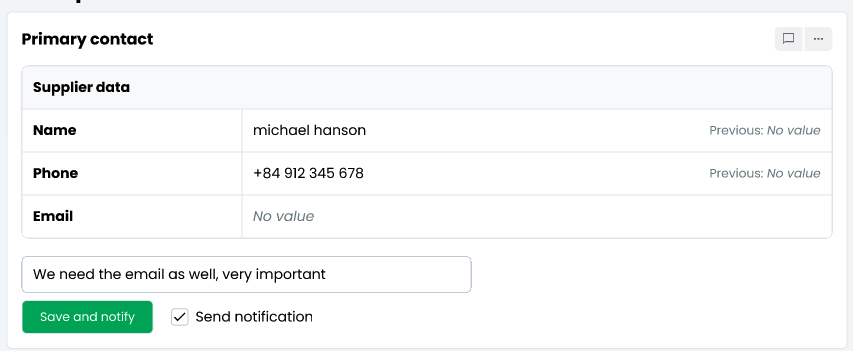
Open the audit report and click the comment icon on each checkpoint or non-conformity that needs attention. Write your comment by clicking the comment icon on the checkpoint:
Untick Send notification and save. Comments saved this way are not emailed one by one. They are collected and sent together when you assign the audit back.
Step 2: Assign back with a note
In the Status panel, click Assign back to auditor.
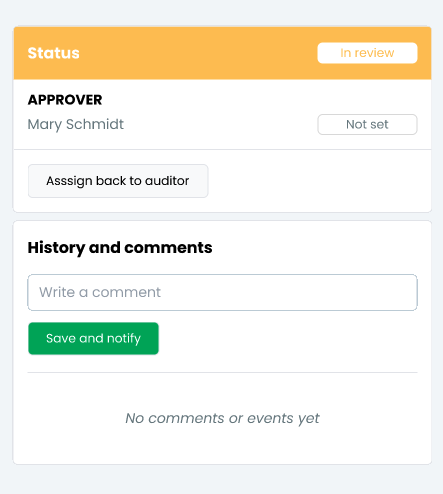
Choose the auditor and write a note. The note is included in the email to the auditor. Your review comments are listed below the note so you can check them before sending. Click Assign back and notify auditor.
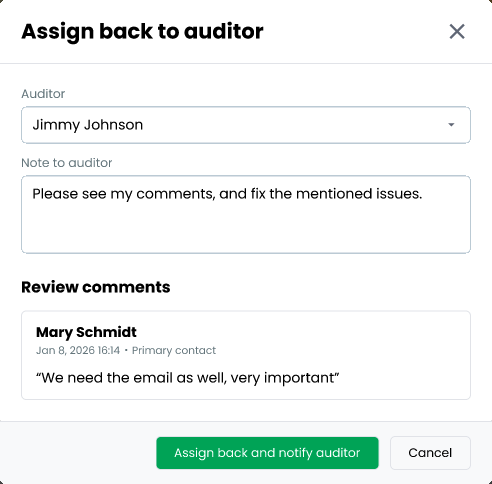
Assigning back clears all approval steps already set on the audit. Approvers who had already given their conclusion are notified, and when the auditor submits again, approval starts over from the first step.
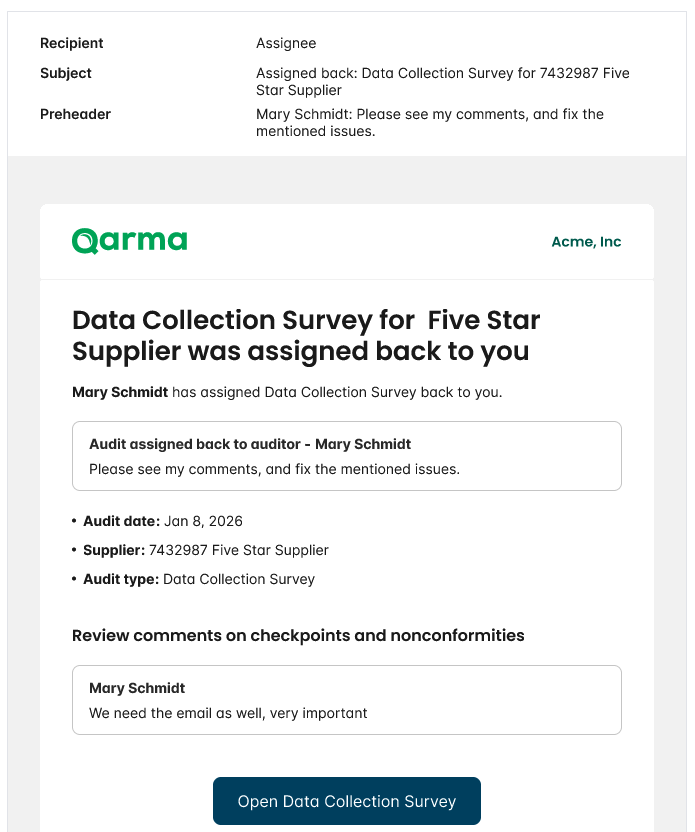
Step 3: The auditor receives an email
The assigned user gets an email with your note, the audit date, supplier and audit type, and all review comments on checkpoints and non-conformities. A button opens the audit directly.
Step 4: The auditor fixes the audit
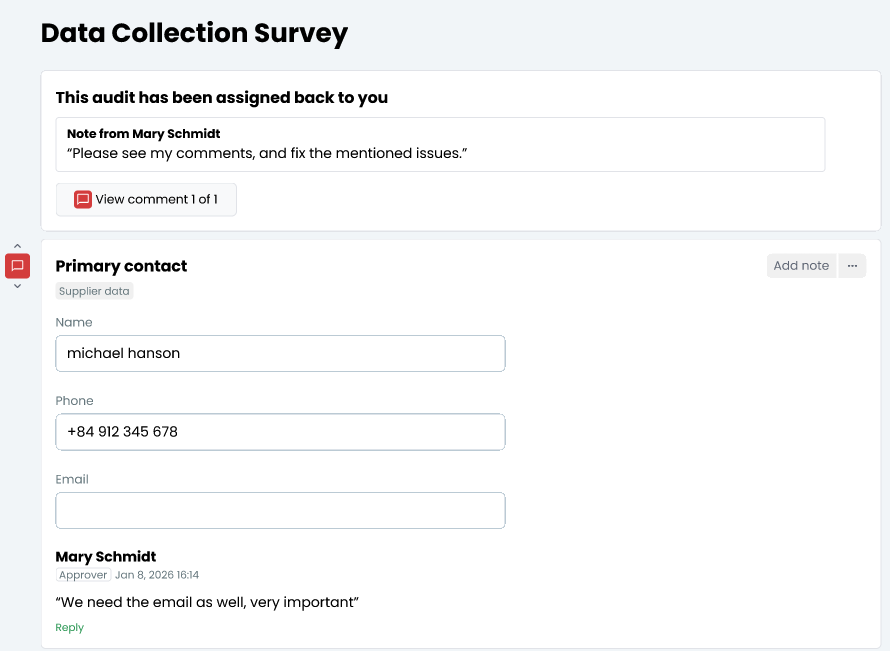
On the Perform audit page, a banner at the top shows that the audit has been assigned back, with your note. View comment steps through the comments one at a time. Each comment is shown under the checkpoint it belongs to and is marked in the margin, and the auditor can reply to it. When everything is corrected, the auditor submits the audit again.
Edit the audit yourself
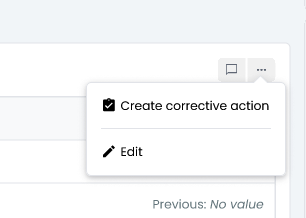
Step 1: Find the Edit button
In the audit report, open the ... menu on the checkpoint you want to change and choose Edit.
Step 2: The checkpoint switches to edit mode
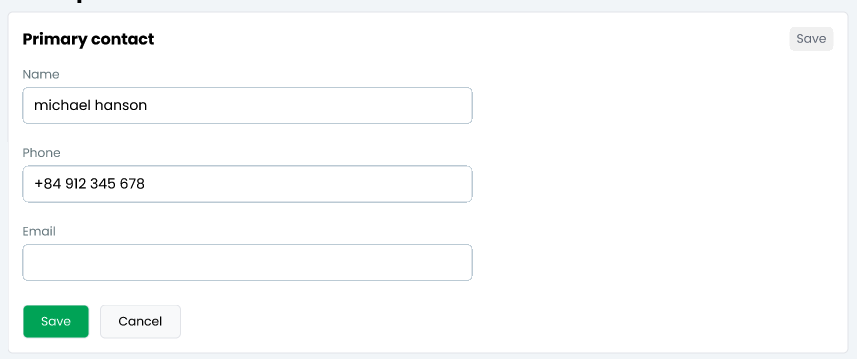
The checkpoint opens with the same fields the auditor filled in.
Step 3: Correct and save
Make your corrections and click Save. The report shows the previous value next to each field that was changed.
Step 4: The edit is recorded in the history
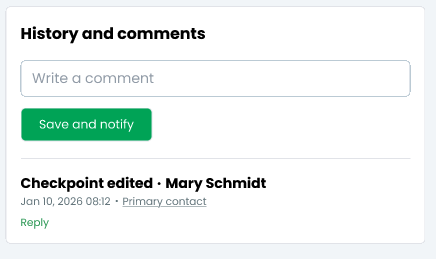
Every edit adds an entry under History and comments with who edited, when, and a link to the checkpoint.
Final approval now updates the supplier and production unit
The approval flow changes with this release. Data collected in an audit, such as supplier and production unit fields and supplier documents, is transferred to the supplier or production unit profile when the final approval is set, not before. This means that data which is still under review, or has been sent back for correction, does not reach the profile.
You are asked to confirm when you set the final approval.
The audit history shows when the data was transferred.
If the final approval is set again later, the data is transferred again. Supplier documents that were already created are not duplicated.
Delete comments
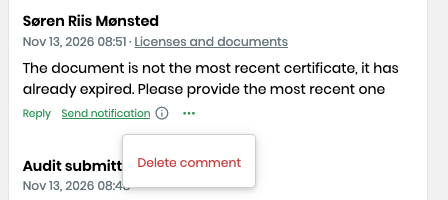
Since the review process may generate a lot of editorial comments which are not meaningful for the final report, it is now possible to delete the comments as well by clicking the … next to the comment:
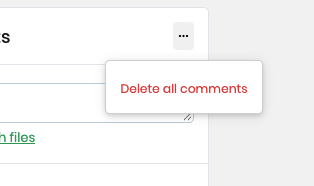
You can also delete all comments from the top of the comments section:
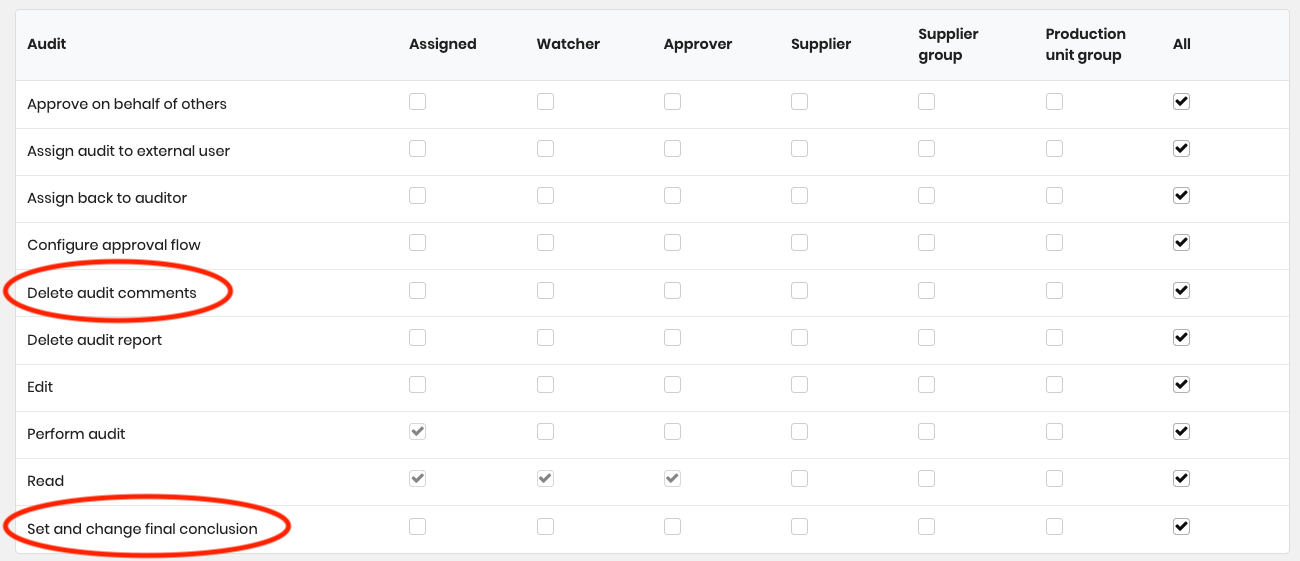
New edit permissions
Since this operation of deleting comments is reducing the transparency of what is happening to an audit, it is a special permission that you can reserve for admin users.
Also the ability to send audits back to the auditor is a separate permission as shown below.
Did you like this update?


Leave your name and email so that we can reply to you (both fields are optional):
